


Tally 9 new features include Payroll. Tally Payroll is integrated with Accounting to give the user the benefits of simplified Payroll processing and accounting.
Features of Tally Payroll
Tally Payroll offers the following features to meet the diversified requirements of small to large business enterprises.
Enabling Payroll in Tally
To enable Payroll
Go to Gateway of Tally > F11: Features
Under Accounting Features, set
· Maintain Cost Centres to Yes (if applicable)· Maintain Payroll feature to Yes and
· More than ONE Payroll/Cost Category to Yes (if applicable)
To enable Payroll
Go to Gateway of Tally > F11: Features
Under Accounting Features, set
· Maintain Cost Centres to Yes (if applicable)· Maintain Payroll feature to Yes and
· More than ONE Payroll/Cost Category to Yes (if applicable)
 Payroll Configuration
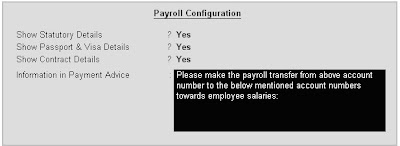
The Payroll Configuration can be activated as shown below:
Gateway of Tally > Display > Select F12: Configure > Payroll Configuration
 The new enhanced Payroll in Tally requires minimal effort for accurate processing. Setting up Pay Heads, Employee Group, Employees, Salary Details and Attendance/Production Type is now a simple process with Tally’s Four easy steps to generate a payslip.
Create Pay HeadsThe components of structured salary are created under Pay Head
Create the salary structure components in pay head.
Create the salary structure components in pay head.
Further the Pay head can be classified on Basis of its calculation and comuteability. We can compute the value of a pay head on basis of
· Attendance
· Production
· Based on calculation of some other pay head
To Create a Pay head in tally follow the steps :
Gateway of Tally > Payroll Info > Payhead > Create. the following Screen will be displayed
· Attendance
· Production
· Based on calculation of some other pay head
To Create a Pay head in tally follow the steps :
Gateway of Tally > Payroll Info > Payhead > Create. the following Screen will be displayed

The details of this screen are discussed below:
Name: An appropriate name describing the nature of the ledger account.
Alias: An alternative name or code for the Name.
Pay Head Type
A Pay Head may be used in Payroll, either as Earning, Deduction, or None. The Pay Head, which is marked as Earning or Deduction, would appear in the Payslip. These are shown in figure below:

Examples:
Earning: Basic Salary, HRA, Dearness Allowance etc.Deduction: Income Tax, Salary Advance, Provident Fund etc.
Under: An accounting group, under which a ledger is defined. Normally it is Direct or Indirect Expenses or Current Liabilities or Assets.
Affect Net Salary: If the head does not affect net salary set this to NO like Employer’s Contribution to PF or ESI etc. Otherwise set it to YES.
Name to Appear in Payslip: The user may create a Ledger with the Accounting Name and specify the Pay Head Name to be used in Payroll Reports, in this field. If this field is blank, by default the Ledger Name is used in Payroll Reports.
Use for Gratuity: If Pay Head Type as Earning is selected, then Use for Gratuity field is displayed. To use any of the Earning Pay Heads (such as Basic Salary, HRA, etc.) for Gratuity calculation, set this field to Yes
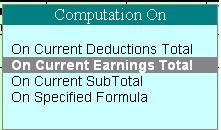
Payroll Calculation TypeCalculation Type is associated with each Pay Head in Pay Structure of employee master. Here, the user has various options to select such as As Monthly Flat Rate, As Computed Value, On Current Earnings Total and so on. These types are shown in Figure below:

As Flat Rate
As Flat Rate is a calculation type that is used when the value of a Pay Head is a fixed amount for a Month or Week or Day. This calculation type is not dependent on any Attendance/Production type and the user needs to specify the Daily , Weekly or Monthly earning or deduction amount in the Value Basis field. When the payroll voucher is auto-filled, the value of the Pay Head is picked up directly from the employee master’s value basis field.
Examples:1. A Flat Salary , which does not depend on attendance or leave.
2. Fixed Loan Installment deduction amount.Pay on Attendance
Pay on Attendance calculation type is used along with the Attendance/Production type and Rate per unit. The variable data will be entered in the Attendance voucher. During Payroll Auto Fill, Tally will compute the value of the Pay Head, by multiplying the attendance/production data with Rate specified for the Pay Head.
Attendance / Leave with Pay
This field appears if On Attendance is selected in Calculation type field. It has two types of fields
Attendance / Leave with Pay : If you intend to feed in Days Attended in attendance
Leave without pay: If you intend to feed in Days Absent in attendance.
The units of Attendance type are selected as answers for these fields. The units are explained below
On Production
If the pay is linked to production then this calculation type is used. For example if a bicycle manufacturing industry the pay of assembly line workers can be linked to number of bicycles made per day or month.
On selecting this Calculation type it asks for Production type. Again Units are used for this field which are explained below.
As Computed Value
This calculation type is used if the Pay Head value is computed based on the values of other, one or more Pay Heads or Attendance data. Steps for setting up calculation type As Computed Value Pay Head. The computation is on base of the following
1. Select As Computed Value in Calculation Type.
2. Define what percentage of the computed value should be taken as Pay Head Value.
3. Specify the computation criteria in terms of which Pay Heads to add or subtract and which Attendance/Production Type to multiply or divide with for arriving at the base computed value.
Example:
Variable DA as 72% of Basic SalaryOnly those Pay Heads, which have been already defined prior to current Pay Head can be used in the Computation criteria.
The slabs and the percentage or Values on base of which calculation is done is fed in following table:

As User defined ValueThis calculation type is used if none of the other computational methods is applicable to a Pay Head.
This calculation type allows the user to manually enter the value of a Pay Head while using Payroll Auto Fill functionality in Payroll voucher.
This type is useful for the Pay Heads that has variable values and are not related to any attendance/production data or not computed on the basis of other Pay Head.
Example:· Medical Reimbursement
.The fully filled Pay Head screen would look like the figure below:

Units (Time/Work)
A Unit in Tally Payroll is similar to the Unit of Measure in Tally’s Inventory module. In Payroll, Units are used to facilitate calculation of a Pay Head value based on Attendance or Production, which in turn would be linked to Units such as Time, Work or Quantity.
Go to Gateway of Tally > Payroll Info. > UnitTally Payroll has three pre-created units, which are most commonly required.
Go to Gateway of Tally > Payroll Info. > Units > Create
In the Units Creation screen, select the Type of unit from the list. Select the Symbol from the list.
Units for Day and Mth are Simple Units, while Mth of 30 Day is a Compound Unit. Mth is a reserved Unit in Tally, which cannot be modified.
In the above definition of Day, Number of decimal places is set as 1, which means, you can enter a decimal value of .5 Days for a half-day in Tally Payroll.
Attendance/Production Types
The Attendance/Production Types are used when a salary component (Pay Head) – Earning or Deduction - is computed, based on a formula linked to statistical data such as Hours worked, Number of Pieces produced, No. of days present or conversely, No. of days Absent.
Attendance/Production Type is associated with the Pay Head in employee’s Pay structure. The variable data is entered in the Attendance voucher for the payroll period.
Attendance/Production Types may also be defined in hierarchical groups whereby Types having a common Unit are combined under logical groups.
The Attendance/Production Type may be a Normal Attendance (if salary is to be paid based on number of days attended), Paid Leave, Unpaid Leave, Absent, Piece Production, Overtime Hours, and so on.
Go to Gateway of Tally > Payroll Info > Attendance/Production Types
Create Attendance/Production Types
Create Attendance/Production Types for Paid Leave and Unpaid Leave as Group and Casual Leave, Sick Leave and Overtime.
Go to Gateway of Tally > Payroll Info. > Attendance/Production Types > Create
Enter the name under Primary group and select the unit (Time/Work) from the list.
Create Attendance/Production Types for Paid Leave and Unpaid Leave as Group and Casual Leave, Sick Leave and Overtime.
Go to Gateway of Tally > Payroll Info. > Attendance/Production Types > Create
Enter the name under Primary group and select the unit (Time/Work) from the list.
Create Employee Masters
Create an Employee master. Enter the requisite Employee Details & Employee group by grouping employees under the function they perform; their department or designation.
Create an Employee master. Enter the requisite Employee Details & Employee group by grouping employees under the function they perform; their department or designation.
Employees
The Employee Master of Tally Payroll maintains employees’ personal details, function, designation, location, level in the hierarchical group and Pay Structure applicable from a given date with details of Earnings, Deductions and basis of computation.
Go to Gateway of Tally > Payroll Info. > EmployeesEmployee Creation Screen
The Employee Master of Tally Payroll maintains employees’ personal details, function, designation, location, level in the hierarchical group and Pay Structure applicable from a given date with details of Earnings, Deductions and basis of computation.
Go to Gateway of Tally > Payroll Info. > EmployeesEmployee Creation Screen

An Employee master can be created in two ways -
· As an Employee Group or
· As an Individual Employee.
An Employee Group allows the user to group employees in some logical manner. E.g. department or function such as Production, Sales, Administration and so on, or by designation such as Managers, Supervisors, Workers and so on.
However, it is not compulsory for all employees to have the same compensation structures as of the Group. If required, a Pay Head element or its value may be added, deleted or altered at Individual Employee level.
Employee Level
NameThis field contains Name of a Group of Employees or an Individual Employee.
Alias
This field contains alternative name/s of Group or Employee.
Under
This field has the name of the Parent group, under which Group or Employee is created.
Employee DetailsEnter Employee Number, Gender, Date of Joining, Designation, Function, Location, Date of Birth, Blood Group, Father's/Spouse name, Address, Contact Number, E-Mail ID, Bank A/c Number, Bank Name, Branch and Set the Deactivate field to Yes and enter the Date of Deactivation if there is cessation of employment (either by resignation, death, retirement or termination).
If you set Use PF/ESI/IT PAN details in Payroll, Use Passport/Visa details in Payroll and Use Contract Details in Payroll to Yes in the Payroll Configuration screen, then the Employee Details screen will contain additional fields like PF Account Number, ESI Number, Employee IT PAN, Passport Number, Country of Issue, Passport Expiry Date, Visa Number, Visa Expiry Date, Work Permit Number, Contract Start Date and Contract Expiry Date.
NameThis field contains Name of a Group of Employees or an Individual Employee.
Alias
This field contains alternative name/s of Group or Employee.
Under
This field has the name of the Parent group, under which Group or Employee is created.
Employee DetailsEnter Employee Number, Gender, Date of Joining, Designation, Function, Location, Date of Birth, Blood Group, Father's/Spouse name, Address, Contact Number, E-Mail ID, Bank A/c Number, Bank Name, Branch and Set the Deactivate field to Yes and enter the Date of Deactivation if there is cessation of employment (either by resignation, death, retirement or termination).
If you set Use PF/ESI/IT PAN details in Payroll, Use Passport/Visa details in Payroll and Use Contract Details in Payroll to Yes in the Payroll Configuration screen, then the Employee Details screen will contain additional fields like PF Account Number, ESI Number, Employee IT PAN, Passport Number, Country of Issue, Passport Expiry Date, Visa Number, Visa Expiry Date, Work Permit Number, Contract Start Date and Contract Expiry Date.
Employee Group Creation
Create Managers as an Employee group.
Go to Gateway of Tally > Payroll Info > Employees > Create
After the entries are made, the following screen displays.
Create Managers as an Employee group.
Go to Gateway of Tally > Payroll Info > Employees > Create
After the entries are made, the following screen displays.


 12-08-2008


